
Does the HLA work on all web browsers?
Currently the HLA is supported on Firefox, Safari,
Internet Explorer
(versions 8* and 9) and
Google Chrome.
You may find that the HLA interface mostly works on
other modern browsers, but you may find some aspects
that do not work correctly. We are interested in
feedback on your experience using other browsers. We
may not be able to fix problems quickly in browsers
other than Firefox and Safari. We will also endeavor
to maintain Internet Explorer compatibility, but
due to the many differences between IE and the other
browsers, it is possible that some future features
will first appear for Firefox, Safari and Chrome, and only
later will be supported on IE. We encourage the use
of standards-supporting browsers.
*IE8 limitations - the scatter plot and plotting tools do not work on IE8 as it does not support HTML5.
You will need a current version of Adobe Flash installed on your computer in order to see the footprint display.
To fully realize all of the HLA's functionality, one must have cookies and pop-ups enabled.
Are data from all HST instruments available via the HLA?
Yes, with the exception of data from the FOC, HSP, and WF/PC (the pre-1994 aberrated camera), all the HST instruments are represented in the HLA. All instruments are shown in the search results (including the footprints view), and data from all instruments are available for download. Some instruments have enhanced data products developed for the HLA while others have the standard products available from the HST archives. The matrix below gives more detail:
| Instrument/Product | Source | HLA Enhanced Products 1 |
Download
Format |
Interactive
Display? |
|
|---|---|---|---|---|---|
Notes:
|
|||||
| ACS/combined images | STScI | 99%2 | FITS | ✔ | |
| ACS/source lists | STScI | 95%3 | Ascii | ✔ | |
| ACS/grism extractions | ST-ECF | 70%4 | FITS | ||
| ACS/mosaic images | STScI | 2562 images for 1077 pointings | FITS | ✔ | |
| WFPC2/combined images | CADC | 99% | FITS | ✔ | |
| WFPC2/source lists | STScI | 97%5 | Ascii | ✔ | |
| WFC3/combined images | STScI | 99%6 | FITS | ✔ | |
| WFC3/source lists | STScI | 99%7 | Ascii | ✔ | |
| WFC3/mosaic images | STScI | 1744 images for 610 pointings | FITS | ✔ | |
| NICMOS/grism extractions | ST-ECF | 80%, 1-D & 2-D spectra | FITS | ||
| NICMOS/images | STScI | 100%8 | FITS | ✔ | |
| STIS/images and spectra | STScI | FITS | ✔ | ||
| FOS/spectra | STScI | Tar | |||
| GHRS/spectra | STScI | Tar | |||
| Contributed Products | Community9 | FITS | ✔ | ||
| COS | MAST | FITS | |||
Here are additional details about the HLA data holdings for each HST instrument:
ACS
The HLA offers all ACS data that were public as of October 1, 2017 (DR10).
Data from all the cameras (WFC, HRC and SBC) are included.
These data have been processed with a
new image combination pipeline, originally developed for WFC3 DR8 and greatly improved for DR10, to produce visit-combined
images similar to those in previous releases, but
with enhancements in the processing procedure and some changes in format. Image combinations are now done using DrizzlePac routines (e.g., AstroDrizzle) for better intra-visits
source-based alignment, and improved pixel rejection in final products. The source lists generated for DR10 are notably
more accurate in photometry than those previously made available.
The combined images have an Exposure Time layer (now stored in Extension 5 of the drizzled FITS image) which records the effective exposure time for each pixel allowing for a more accurate noise estimate. Information about all images combined to generate each drizzled product is now stored in a binary table in Extension 4; this replaces the cumbersome mechanism used for other instruments, which relies on specially named DXXX keywords (where XXX is the image number, starting at 001) in the primary header. Combined images are not sky subtracted, rather exposure-to-exposure variances are matched to the brightest exposure, leaving the original sky level and noise largely intact in the final combination.
Most enhanced products for DR10 are from direct imaging modes with ACS WFC, HRC, and SBC. Grism data, prism data, and coronographic data are largely provided as level 1 products. Products which exhibit poor data quality, e.g., due large numbers of rejected pixels or poor exposure background matching, were generally rejected after a quality review.
One important area where the DR10 ACS images are degraded compared with the old DR8 images is in astrometry. These images do not have an overall astrometric correction generated by matching to external catalogs. We anticipate this being a short-term problem and plan to do an incremental DR10.2 data release in summer 2018 after the completion of version 3 of the Hubble Source Catalog. The HSC determines much improved astrometric coordinates for HLA images, and in version 3 that includes calibration using the Gaia DR1 catalog.
WFC3
The HLA offers all WFC3 data that were public as of October 1, 2017 (DR10), processed
with the same improved
image combination pipeline used for ACS. As with previous releases, the pipeline produces visit-combined images and products, but with
enhancements in the processing procedure
and changes in format. Images are now combined with
DrizzlePac
routines for much improved intra-visit source-based alignment, and using
AstroDrizzle to improve final image quality over
previous MultiDrizzle products (see resolved known bugs).
The combined images have Exposure Time layer (now stored in Extension 5 of the drizzled FITS image) which records the effective exposure time for each pixel allowing for a more accurate noise estimate. Information about all images combined to generate each drizzled product is now stored in a binary table in Extension 4; this replaces the cumbersome mechanism used for other instruments, which relies on specially named DXXX keywords (where XXX is the image number, starting at 001) in the primary header. Combined images are not sky subtracted, rather exposure-to-exposure variances are matched to the brightest exposure, leaving the original sky level and noise largely intact in the final combination.
For DR10, subarray data are processed along with normal full-frame observations. Grism data and data taken in spatial scan mode are processed only to level 1 (exposures are not combined to produce level 2 images). Effort is made to reject data taken for the Servicing Mission Observatory Verification (SMOV), not typically identified as Calibration data. Additionally, products which exhibit poor data quality, due large numbers of rejected pixels or poor exposure background matching, were generally rejected after a quality review.
As with previous releases, WFC3 source lists have been generated for DR10. These source lists can have tens of thousands of sources in crowded fields, which can lead to long load times.
Note that the WFC3 images, like the DR10 ACS images, do not have improved astrometry generated by matching to external catalogs. The WFC3 astrometry will be updated as part of the incremental DR10.1 data release planned for spring 2018, which will incorporate the much improved astrometry that is determined during the construction of version 3 of the Hubble Source Catalog.
ACS and WFC3 Mosaics
Mosaics represent multi-visit combinations of imaging data, either covering a larger area or
going deeper than possible in a single visit. The DR10 release includes a completely new set of mosaics that incorporate data from ACS/WFC, WFC3/IR, and
WFC3/UVIS. A total of 4306 mosaic images for 1348 different pointings are currently available.
Mosaics appear in the normal HLA search when they exist at the search position.
A complete list of mosaics
can be found by changing the Data Product to "Mosaic (Level 3)" images under the Advanced Search
options and doing an all-sky search at position "0 0 r=180". The result include all the single filter mosaic images plus more than 1000
color images that combine filters. Note that the ACS and WFC3 data are drizzled onto the same pixel grid, making it easy to do
multi-wavelength analyses such as constructing color images.
WFPC2
STScI has reprocessed all WFPC2
data with a calibration pipeline that includes better handling of the
time-dependent UV contamination and of other late-life data artifacts,
especially the variation in the bias level in WF4. See the
Reprocessing Page
for more details. Level 2 (visit) combined images, obtained at CADC, are
provided for about 96% of all WFPC2 science images.
Source lists based
on both DAOPhot and Source Extractor are also available for
essentially all WFPC2 data.
In most cases, the photometry
for WFPC2 sources
has been corrected for the CTE loss following the prescriptions
of Dolphin (2009).
COS
A small subset of public COS
data have received some additional processing to make
it possible to view through the Interactive Display.
These are primarily data taken for Early Release Observations,
Here is a list of those programs,
which also includes several Early Release
ACS and
WFC3 programs.
NICMOS
STScI has reprocessed all
NICMOS
data with a fully revamped calibration pipeline that includes
temperature-dependent dark frames, improved temperature
measurements from bias levels, and other routines to reduce
the impact of image artifacts and improve the calibrated data.
See the NICMOS
Data Handbook for more details.
The HLA includes visit-level combined images for all science imaging data
taken with NICMOS,
updated to their latest reprocessing. About 7% of all the
NICMOS
data have been updated to include the
SAAClean
procedure.
High-Level Science Products
Many community-contributed High-Level
Science Products (HLSP) are available for search,
display, and retrieval from the HLA interface. HLSP are
identified as Level 5 data products in the HLA interface.
HLSP are produced by independent science teams and can
also be obtained directly
from MAST.
Available since DR7 through the HLA interface is StarCAT, a collection of STIS
Echelle spectra for stars produced by Dr. Thomas Ayres (see the
StarCAT home page). StarCAT data were already available through the MAST High-Level Science Products interface; now they are fully integrated in the HLA
interface, and can be searched, viewed, and retrieved like other Category 5 (High-Level Science Products) data. To find all that are
available, enter "starcat" in the advanced search Proposal ID box, then conduct an all-sky search. A total of 586
products should appear. Previews are also available through the Images tab. For more detail, see the
FAQ on spectral HLSP.
How accurate are the HLA data?
Please note that while the HLA images and source lists will be sufficient for many people's science, by necessity these products are developed for general usage rather than being "tuned" for a specific scientific goal, hence in many cases the optimal science can be achieved by going back to the original STScI calibration pipeline data and processing on a chip-by-chip basis. Also, for some projects it is desirable to use data at their original pixellation; HLA-produced data have been re-sampled to a uniform grid to correct for geometric distortions.
Nonetheless, these are in fact science-quality images that are suitable for use in many research projects. Considerable effort has been devoted to correcting for data issues such as exposure misalignments, and the parameters used for drizzling have been optimized as well as possible for generic fields. The source lists (and the associated Hubble Source Catalog) are also of good quality. The HLA data products are likely to be suitable for most projects that can be carried out from drizzled images.
More details are available regarding the accuracy of the HLA astrometry and photometry.
How good is the astrometry for the images and the source lists?
HLA processing for WFPC2 and NICMOS attempts to correct the astrometry of most images by matching sources with one of three catalogs, namely the Guide Star Catalog 2 (GSC2), 2MASS, and the Sloan Digital Sky Survey (SDSS) catalog; results are recorded in the astrometry keywords in the image header. The absolute astrometry is adjusted to match that of SDSS if a sufficient match is available, otherwise to GSC2; 2MASS is used to assess the quality of the solution. An analysis of the astrometric correction applied and its internal consistency for a subset of the pre-DR9 ACS data is presented in astrometry_all.summary.
Note that astrometric adjustments have not yet been made for either the WFC3 data or the DR10 ACS data. The astrometry for both of those instruments (as well as WFPC2) will be updated as part of the incremental DR10.1 data release planned for spring 2018. That will greatly improve the accuracy of the astrometry for all the HLA catalogs and images by incorporating the much improved astrometry that is determined during the construction of version 3 of the Hubble Source Catalog.
When a correction is possible, the typical absolute astrometric accuracy of the HLA-produced images is ~0.1 arcsec in each coordinate. About 80% of the WFPC2 images have corrected astrometry. This astrometric correction is not possible for many images because of crowding, lack of matching sources (especially for instruments with small field of view, such as NICMOS), or sources that are unresolved from the ground. In such cases, the absolute astrometry is typically accurate to ~1-2 arcsec in each coordinate, as for the standard pipeline products. The current version 3 of the HSC has absolute astrometry based on the Gaia DR1 catalog, which is much more accurate. The next version of the HLA images will also incorporate these corrections.
The Gaia, PanSTARRS (PS1), SDSS, 2MASS, GSC2, FIRST and GALEX catalogs are available for overlaying on the images in the interactive display and provide an excellent way to check the absolute astrometry for a particular image. The astrometry accuracy varies for the external catalogs and also varies from source-to-source, although Gaia is clearly the most accurate of the external catalogs. The approximate accuracy of the catalogs is given below:
| Catalog |
Positional Accuracy
(RMS, arcsec) |
Description |
|---|---|---|
| Gaia | <0.001 | Gaia DR1 catalog |
| PS1 | 0.03 | PanSTARRS DR1 catalog |
| SDSS | 0.15 | Sloan Digital Sky Survey DR5 catalog |
| 2MASS | 0.15 | Two Micron All Sky Survey Point Source Catalog |
| GSC2 | 0.25 | Guide Star Catalog 2.3.2 |
| FIRST | 0.50 | Faint Images of the Radio Sky at 20 cm |
| GALEX | 1.0 | Galaxy Evolution Explorer GR4 catalog |
How do I find moving targets (e.g., planets, asteroids, ...) in the HLA?
There are two ways to find moving targets. Under advanced search, click the box to the right of "Moving Targets only" and then do an all-sky (0 0 r=180) search. (Note that when the Moving Target box is checked, an all-sky search is done by default when the search box is empty.) The search will return only observations where HST was tracking the target during the exposure. There are currently about 45,000 moving target observations in the HLA. (If the query times out, try waiting a couple of minutes and then click search again.) You can restrict the choice of instruments, filters, etc. using the other search parameters to produce a less unwieldy set of results. To find only HLA products, select the ACS, WFC3 and WFPC2 instruments (30,000 results). After the search completes, filter the results using the target name (e.g., *jup* finds Jupiter observations).
The other approach is to use the ACS moving target list, the WFC3 moving target list, and the WFPC2 moving target list. These lists provide information on the target name, detector, filters, proposal ID, etc., in a compact tabular format. They also include links enabling easy HLA searches for particular observations and can be a convenient way to browse the moving target data.
How can I find data from a particular proposal ID number?
There are three ways to find data from a particular proposal ID. The first is to enter a proposal id and visit number into the search box (i.e. 10005_10). This will search the sky in the vicinity of the given observation. A second approach is to use the Proposal ID text box in the advanced search options in addition to a target search. An all-sky search with a specified proposal ID (either by leaving the search box blank or entering "0 0 r=180") will return all data from that proposal. The third method is to do an all-sky "0 0 r=180" search and then filter the results by the desired proposal ID using the blank box under the PropID column in the inventory view. Note that the third method can only be used for one instrument at a time and may return very large result lists, while the other two can be used with multiple instruments selected. The filtering approach will be more convenient only if the region of the sky being searched is already fairly restricted, in which case data from other proposals may also be of interest.
Note that the footprint view is not available when doing all-sky searches. In order to enable the footprint view for the data from a specific proposal ID, one can run the search again specifying a region of the sky suitable to include data from that proposal or by searching at the position of a particular visit. It is also possible to select a subset of datasets from a large search by clicking on them. Then if the display mode in the interface is changed to Only (rather than the default Mixed), the footprint display will be usable as long as the selected datasets are in a small region of the sky.
Can I search for a list of targets? What formats are allowed for the user-defined search lists?
It is possible to use your own coordinate list to search the HLA, using the "Position List File Upload" feature after clicking the advanced search button.
Lists can be delimited in various ways (whitespace, commas, tabs, etc.) and can have positions given in degrees or in sexagesimal format (hr min sec deg min sec, with the fields separated by blanks or colons). The position file must have one position per line, with the RA and Dec (J2000) being the first two columns on the line. Lines beginning with a hash symbol (#) are treated as comments and ignored. Trailing information on the line is ignored.
How can I find some interesting looking HLA images?
The Position List File Upload feature can be used to find interesting images, e.g., from the NGC or Messier catalogs. Here are some lists that we generated:
Interesting WFPC2 images, Messier objects, Interesting ACS images, Harris globular clusters, Abell clusters, and Spitzer SINGS galaxies
How can I tell if the astrometry has been corrected for a given image and whether the image has been matched to the SDSS, GSC2, or 2MASS catalog?
World Coordinate System (WCS) coordinates are encoded in the CRVAL1 (right ascension of the "reference pixel") and CRVAL2 (declination of the "reference pixel") keywords in the header of all FITS images. You can view the image header using the "imheader" command in IRAF (or the equivalent command in other reduction packages) or by using your normal text editor.
The absolute astrometry for HST images typically has errors in the range 1 - 2 arcsec, due to uncertainties in the positions of the guide stars. We attempt to correct for these errors in the HLA by comparing the positions of stars in the images with stars in one of three catalogs, 1) the Sloan Digital Sky Survey (i.e., SDSS), 2) the Guide Star Catalog 2 (i.e., GSC2), and 3) the Two Micron All Sky Survey (2MASS).
At present, the order of preference is SDSS, then GSC2. 2MASS solutions are also considered (and included in the header, see below), but are not propagated into the active CRVAL even if there is no SDSS or GSC2 solution. This is likely to change in the near future.
The original CRVAL parameters, as well as the equivalent values based on comparisons with the GSC2, SDSS, and 2MASS, are all stored in the headers of HLA images. Here is an example for image hst_05993_01_wfpc2_f606w_wf (near Abell 1689).
This is the active astrometric zeropoint:
CRVAL1   = 197.9593583858333  / right ascension of reference pixel (deg)
CRVAL2   = -1.325279720833333 / declination of reference pixel (deg)
These are the original CRVAL parameters from the "raw" image (i.e., before drizzling and rotation to north-up; hence mainly useful as an historical record since the values are for a different frame of reference than used for the HLA images).
OCRVAL1  = 197.9451240351  / right ascension of reference pixel (deg)
OCRVAL2  = -1.325601571138 / declination of reference pixel (deg)
This is the original astrometric zeropoint after drizzling and rotation to north-up, but BEFORE an astrometric correction has been made based on matching to SDSS, GSC2, or 2MASS, as described above.
O_CRVAL1 = 197.9592647
O_CRVAL2 = -1.32533505
This is the solution, offset, RMS, and number of stars used in the solution versus Guide Star Catalog 2
G_CRVAL1 = 197.9593676566667  / GSC2 CRVAL1
G_CRVAL2 = -1.325229256111111 / GSC2 CRVAL2
G_DRA    = 0.370644           / GSC2 delta RA in arcsec
G_DDEC   = 0.380858           / GSC2 delta DEC in arcsec
G_RMSRA  = 0.545364           / GSC2 rms in arcsec
G_RMSDEC = 0.269053           / GSC2 rms in arcsec
G_NMATCH = 15                 / GSC2 number of sources
This is the solution, offset, RMS, and number of stars used in the solution versus the Sloan Digital Sky Survey
S_CRVAL1 = 197.9593583858333  / SDSS CRVAL1
S_CRVAL2 = -1.325279720833333 / SDSS CRVAL2
S_DRA    = 0.337269           / SDSS delta RA in arcsec
S_DDEC   = 0.199185           / SDSS delta DEC in arcsec
S_RMSRA  = 0.204462           / SDSS rms in arcsec
S_RMSDEC = 0.158806           / SDSS rms in arcsec
S_NMATCH = 38                 / SDSS number of sources
This is the solution, offset, RMS, and number of stars used in the solution versus the Two Micron All Sky Survey
T_CRVAL1 = 197.9593402116667   / 2MASS CRVAL1
T_CRVAL2 = -1.3252723075       / 2MASS CRVAL2
T_DRA    = 0.271842            / 2MASS delta in arcsec
T_DDEC   = 0.225873            / 2MASS delta in arcsec
T_RMSRA  = 0.251613            / 2MASS rms in arcsec
T_RMSDEC = 0.06729300000000001 / 2MASS rms in arcsec
T_NMATCH = 3                   / 2MASS number of sources
Hence in the example above, the SDSS solution has been used to define the astrometric solution for the HLA image, since the CRVAL and S_CRVAL values match. Note that the best way to check the absolute astrometry is to overlay the three catalogs using the interactive display tool in the HLA.
Why do searches sometimes return observations that fall outside the search radius?
Sometimes the search results include observations that fall outside the requested search area. This is the result of a shortcut in the search logic, which makes the searches as fast as possible but results in some inaccuracies. The results are guaranteed to include all observations that should be included; they never omit data that ought to be included. But it can also include additional observations due to a fuzzy outer search radius that depends on the orientation of the observation. For a 1 degree search radius, it is possible for observations as far as 1.4 degrees from the search position to be included.
Note that zero-radius searches are accurate. A search using r=0 finds observations that actually cover the search point, and the approximation in the search logic does not affect that case.
In the future we plan to fix this, assuming that we can identify an efficient algorithm that does not degrade the search performance. Until then you should be aware that HLA searches could include some extraneous observations and that the footprint view may list more observations than actually appear within the displayed field of view. One convenient way to find the location of a particular observation is to select it (by clicking on it) in the Inventory or Images view, and then to go to the Footprints view, where the selected observations are highlighted. Observations off the edge of the field will not be visible even when selected
What are the data product levels? What does "Best Available" mean?
There are several levels of data in the HLA:
The Advanced Search options can be used to select the level of data included and searches. The options also include All, which selects all level 1-5 data, and Best Available, which selects the data product that is generally the most useful (e.g., the combined image or HLSP product if it exists, rather than the single exposure or color image). Currently the Best Available list includes all image products of level 2 or above, and includes level 1 data only for exposures that are not used as part of level 2 or 3 products. However, there are cases where it is useful to set the level manually using the "advanced search" option, for example to diagnose why the combined image looks unusual, by selecting exposures (level 1) or All.
How do I search for a particular instrument or spectral element? Can I sort or filter my results?
Select the Advanced Search option, and you will see check boxes for each instrument in the HLA. You can also select specific proposals, spectral elements (e.g., F555W, F814W), and select on the basis of proprietary status.
After the initial search, you can also filter and sort the results for a set of spectral elements using the boxes under the Detector column in the inventory. To sort, click on the field name to sort by that field (first click sorts alphabetically, second click sorts inverse alphabetically). To filter, type your text in the box beneath each keyword. For text fields, you can use an * as a wildcard (e.g., in the Spectral Element field, G230* will find all STIS observations using the G230L or G230LB grating). For numeric fields, you can use the > and < symbols (e.g., in the ExpTime field, >600 will find all exposures with >600s exposure time). It is also possible to specify ranges for numeric columns (e.g., 10..20).
You can enter values in the RA and Dec columns in either decimal degrees or in "sexagesimal" format (hh:mm:ss, dd:mm:ss). So for example in the M101 search you can filter the RA using <14:04:00 to find sources at lower RA values.
How can I change the order of the columns displayed in the Inventory table? How can I change the number of columns displayed in the Inventory table? When I make these changes, can they be saved for later use?
At the bottom of the Inventory page is a "Columns" table with the column definitions. You may use the mouse to drag any column definition up or down to change its location in the Inventory table.
By default not all of the (many) table columns are displayed. The columns may be added or removed one at a time by clicking on the arrows (« ») at the right edge of the main table headings. To add or subtract many columns at once, in the "Columns" table drag the gray bar that says "Columns below are hidden" up or down in the list. Columns above the bar are shown and those below are hidden. Similarly, dragging an individual column definition in this table above or below the bar will show or hide that column. Drag the bar to the bottom of the table to show all columns.
If cookies are enabled in your browser (which is necessary for several HLA features), your custom column ordering will be preserved each time you return to the HLA. (Note that this requires permanent cookies and using the same computer and browser, since cookies are not shared across browsers.)
When many columns are visible, it may be necessary to scroll horizontally across the page to see them all. You may find it useful to select rows by clicking on them. That highlights them in green and makes it easier to find the entries corresponding to the observation of interest.
What is the difference between an "exposure" (i.e., level 1) and a "combined" (i.e., level 2) image? How can I find out what exposures are used to construct a combined image? How are the HLA combined images different than the associations that come out of the normal HST pipeline?
An "exposure" (i.e., level 1) is a single readout (for IR detectors, a readout sequence following a single reset), processed through the normal single-image HST calibration pipeline. It has been bias subtracted, dark corrected, flat fielded, and, for IR MULTIACCUM images, slope-fitted to determine the count rate. Except in the IR, level 1 images still contain cosmic rays. The significant differences between HLA Level 1 products and similar products from the normal calibration pipeline include:
These steps are in preparation for building combined images and other Level 2 products, a process which uses similar software as is used in the normal calibration pipeline. ACS and WFC3 images are, however, further processed to provide additional information; see below for more details.
All the exposures with the same filter, same camera, and within the same visit are combined. The HLA pipeline also combines some images that are not combined in the normal HST pipeline (e.g., when POS TARG is used to define offsets).
STIS images have NOT been astrometrically corrected, nor aligned north up. Data for STIS, FOS and GHRS come from MAST through the HSTonline system, which provides immediate downloads of tar files containing FITS data.
For some ACS, WFC3, WFPC2, and NICMOS exposures which have not been processed though the HLA, the data come from the DADS system, which requires separate request submissions and retrievals. These include proprietary data which can only be retrieved through DADS with an authorized user account, as well as images for which the HLA standard processing is not suitable or does not meet our quality requirements. See the STScI Archive Manual for further information on using the MAST archive.
You can see what individual exposures went into a combined image by using the "More..." button in the bottom right when using the image mode to look at previews, or by looking in the header of the combined image.
What is the format of HLA-produced images? How can I use them in my research?
HLA single (Level 1) and combined (Level 2) images are produced using DrizzlePac software (MultiDrizzle for WFC2 and NICMOS), in some cases with adjustments and post-processing to improve the information provided to users.
All HLA Level 1 and 2 images are drizzled to a constant, rectified pixel grid with North up. The pixel size is determined by the detector used:
| Instrument/Detector | Pixel size (arcsec) |
|---|---|
| WFPC2/WF | 0.100 |
| WFPC2/PC | 0.050 |
| ACS/WFC | 0.050 |
| ACS/HRC | 0.025 |
| ACS/SBC | 0.030 |
| NICMOS/NIC1 | 0.025 |
| NICMOS/NIC2 | 0.050 |
| NICMOS/NIC3 | 0.100 |
| WFC3/UVIS | 0.040 |
| WFC3/IR | 0.090 |
In all processing, the drizzle parameter PIXFRAC is set to 1, which assumes the flux to be uniformly spread over the original detector pixel.
It is possible, depending on how certain datasets were designed and acquired, to obtain higher-quality combinations by selecting smaller pixel sizes, kernels, and PIXFRAC values. Accounting for the various conditions of the data to take advantage of these parameters would add a level (perhaps an unnecessary level) of complexity to the automated HLA processing. It would also add complexity to other products, such as the Hubble Source Catalog, which currently rely on the uniformity in the HLA products.
For all instruments, the drizzled Level 2 products are in the form of a multi-extension FITS image with a dataless primary header. The first extension always contains the final science image, obtained from the combination of all data in a given filter. For WFPC2 and NICMOS, the science image has a constant sky level subtracted to bring the background level in the combined image close to zero. Subtracting the sky has some benefits in visualization, but is prone to uncertainties in photometric quality; therefore the handling of the sky background has been modified for ACS and WFC3 combined data, as described below.
The second extension consists of the weight image, obtained using the Inverse Variance (IVM) option of AstroDrizzle. The interpretation of this image layer is straightforward: at each pixel, the equivalent background noise (in electrons per second) can be obtained as 1/sqrt(IVM), where IVM is the value of the inverse variance as reported in the second extension.
It is very important to keep in mind that drizzled products have by construction correlated pixel values; therefore the variance empirically measured from the data - e.g., from the statistics of an "empty" region of the image - is almost always a severe underestimate of the actual noise in the image. The effective background noise in a region of the image can be estimated as Noise=sqrt(sum(1/IVM)), where IVM is the value of the inverse variance from the second extension, and the sum is extended to all pixels in the region.
The third extension consists of the context image, which records which of the input images contributes to each output pixel. It is in the form of an integer image, with each bit (from least to most significant) being set if the corresponding image in the input order contributes to that pixel. If there are more than 16 input images, the context extension will be a stack of images in the form of a data cube, with the third dimension being large enough to accommodate one bit per input image. Users can consult the AstroDrizzle documentation for more details.
Two additional extensions exist for ACS and WFC3 data. The fourth extension is a FITS binary table which records information from all individual input images. Most columns in the table have the name of a keyword in the input image header, with the addition of the suffix "_CCD1" or "_CCD2" for those keywords that are detector-specific (for ACS/WFC and WFC3/UVIS). Each row corresponds to a different input image. All table entries are in string form, in order to accommodate cases where the same keyword may have different types in different images. Keywords that are not applicable or not defined for a specific image are null strings. A small number of keywords have been added to record specifics of the image combination process; these include the values of the SHIFTS.DAT file used in AstroDrizzle, whose values have been determined by the pipeline alignment process.
Also for ACS and WFC3 data there is a fifth extension, which is another floating-point image that records the effective exposure time at each pixel. This exposure image has also been generated via AstroDrizzle, with separate run using EXPOSURE as the weight mode. The effective exposure time for each pixel takes into account both different coverage from each exposure and the fact that some contributing pixels can be rejected because of cosmic rays, artifacts, and other issues. The exposure image is necessary to include any source counts in the estimated noise at each pixel, since the Inverse Variance reported in the second extension only includes the contribution of the background.
For previous instruments, information on the component images was recorded through the DXXX keywords in the primary header, where XXX is the image number starting at 001. These keywords are generated in MultiDrizzle's standard operation, but they require special handling to interpret and only record part of the input information. The table extension is preferable in both flexibility and ease of interpretation. The DXXX keywords are not included in the ACS or WFC3 data products.
What is the difference between a preview and a cutout (when using the advanced search option)?
A preview image (i.e., what you are looking at by default when you select the "Image" tab) shows the entire field of view, binned down and turned into a JPEG image to make it available very quickly. The only control you have over these previews is that you can select a larger size (512 pixels instead of 256 pixels) in the advanced search options.
On the other hand, a cutout image is a view of a small portion of an image centered at the RA/Dec position specified in the search. A cutout may be either a JPEG image (viewable in the browser) or a regular FITS file containing the true pixel values. You can switch between Previews and Cutouts using the advanced search controls. If you select cutouts, an additional option to set the size of the region is available (the default size is 12.8 arcsec, corresponding to 256x256 WFC pixels).
If there are multiple images available (for example, using different filters), then there will be a cutout shown for each in the "Image" view. Note that since the cutout is centered at a specific RA and Dec position, all the cutouts will show the same area of the sky regardless of the pointing centers for the individual images. If the search position falls outside the image,a blank image is shown with the message "Cutout position is outside image".
The cutout view is especially useful when searching images centered on a specific object of interest; then the object will be centered in each cutout, and images that do not overlap the search position will appear blank. For a large area or all-sky search, the search position is likely to be located outside of some or all of the cutouts, resulting in many blank cutouts.
The cutout view is also very useful in conjunction with target lists. In that case the cutout is centered at the matching position from the list for each dataset. This is a quick way to upload a list of source positions and get a snapshot of the HST observations for all of the sources that have been observed by ACS, WFC3, or WFPC2.
The size of the cutout can be selected to be a small region around an object of interest, which will then download very fast, or a larger region which could be as big as the full image itself, which will generally be much slower to generate and will take several minutes to download if it is an ACS image.
How do I download images and source lists? Can I download several files I have selected at the same time?
Yes. You need to have cookies enabled to download multiple files through the cart interface. A "cart" tab on the main search page shows how many files have been selected. Click on the cart tab to see what has been selected, to modify the selections, or to fetch the data. The files can be bundled into a zip file for transport, or can be downloaded sequentially. Depending on user settings, most browsers can then decode the HLAData.zip on arrival and put the uncompressed files into a folder called HLAData or named after the visit(s) that included the image(s). If the sequential download option is chosen, files are removed from the cart as they are downloaded, so the download can be split into several sessions or restarted if interrupted.
The images can be placed in the cart from the Inventory (far left column) or the Images (bottom of each image). The source lists can now be placed in the cart from the inventory by scrolling right to DAOCat and SEXCat columns for DAOphot and Source Extractor source lists, respectively. The download will not start until you click the "fetch" button on the cart page. Note that even in compressed format images can take a while to transfer.
If you do not have cookies enabled, then you can only download individual files. Click on the file link in the Inventory or Images Tab and a filesave dialog box will appear to save the file.
NOTE: There is a problem using some browsers in download data through the HLA Cart. You can work around this problem by downloading images one at a time. See this page for more information. We are working on a fix to this problem and hope to have the cart working consistently again soon.
What are all the files listed using the "More..." feature in the image mode?
The More... link in the bottom right corner of the Images view gives access to an often large number of files associated with the image. These are the working files used to make the images and source lists, other filters from the same visit, etc. Here is a brief description of some of the more useful files.
The first line provides a link to the MAST page for the proposal. This includes the proposal abstract, links to papers using the data, and a form used to pull data out of the standard HST archives (STDADS).
The next lines show what images were combined to make the image. The first entry in a line (using the "IPPPSSOOT" name starting with I for WFC3, J for ACS, U for WFPC2, and N for NICMOS) is the gzipped calibrated (level 0) image from the archives (STDADS), at the original pixellation. The second entry in a line (starting with HST_...) is the corresponding level 1 (single exposure) image produced by the HLA MultiDrizzle pipeline. This image has been astrometrically corrected (see FAQ), and re-gridded with north up in preparation for the combination step using AstroDrizzle.
If you hit the "Show all ... associated files" a large number of files appear for all the relevant images in that visit, not just the filter you clicked. Here are some generic types of files to look for.
ACS images
WFC3 images
WFPC2 Images
Other Instruments - The files are the normal files that come from the HST calibration pipeline. See the corresponding Data Handbook for the various instrument details.
HLSP - The listing includes link to the MAST page with detailed information on the project that produced the HLSP. It is actually positioned above the proposal link, so it is no longer true that the proposal link is the first line. Note that if the product used data from multiple proposals, there is no proposal link. And the details of the included files are different for the HLSP and vary depending on the particular product.
Is there a summary of known anomalies in the ACS and WFPC2 data?
HLA Instrument Science Report 2008-01 [pdf] describes known anomalies with the HLA ACS data. There is also an WFPC2 Instrument Science Report 95-06 [pdf] for WFPC2 anomalies as well as a short addendum [ppt] on HLA WFPC2 anomalies.
How can I look at a STIS spectrum with the HLA? How accurate is the wavelength scale?
With the 2-d STIS spectral image displayed in the Interactive Display window, you can do both column (c) and line (l) plots. Place your cursor on the spectrum and hit the l key to make a line plot (you may want to expand the scale of the image to properly place your cursor on the spectrum).
The plotting tool enables scaling, binning and smoothing, and to use various units. There is also a simple line measurement capability.
For slitted, first order observations, the wavelength scale should be good. However, for Echelle observations (which displays multiple orders in one image), the wavelength scale is not useful.
Also, for STIS slitless observations (e.g., 50CCD/25MAMA aperture), the wavelength scale is only valid for those objects centered in the (direct) image (i.e., objects that would be centered if a slit were used).
Why do moving targets (e.g., planets, asteroids, ...) look strange?
The primary reason is because there is no easy way to align the images. In general, the single exposure images are scientifically much more useful (e.g., they have been geometrically and astrometrically corrected when possible). To preview the single exposures, use the "advanced search" button and set the "Data Product" to "All" or "Exposure".
The images look funny because the cosmic ray removal software thinks that part of the moving target that does not overlap in separate exposures is a giant cosmic ray, since the pixels are bright in one image and dark in another (like a cosmic ray). The software then uses the lower value as the truth, and removes a large part of the moving targets.
For recently processed data, including all ACS and WFC3 observations in DR10, level 2 combined images are not produced for moving targets. Currently only WFPC2 data have the spurious bad combined products for solar system targets. That will be rectified when WFPC2 data are reprocessed using the new pipeline (planned for DR11).
Why are some of the color previews such strange colors?
The best-looking color images use a combination of three colors that are well spread out in wavelength. A common example is F435W (B), F606W (V) and F814W (I). However, in most cases the available filters used to make the color preview images were not selected to make a "pretty picture", hence the spacing is not optimal and the resulting color is sometimes not very good (e.g., a F435W + F775W + F814W combination).
Another example is when only two filters are available, so that the middle color used to provide the green image (in the normal red-green-blue or RGB method of making color images) is populated by combining the blue and red colors. Hence there are not three independent colors. These do not always provide very pleasing color images.
Still another example is when the WF4 anomaly is present for chip 4 of the WFPC2 (i.e., data from the past few years where the bias level has been suppressed). The non uniformity of the image leads to a wide range of colors from the color lookup table in these cases. Bias jumps on chip 4 can also lead to colorful striping patterns. These problems have been reduced with the improved calibration pipeline used for the last WFPC2 reprocessing, but have not completely disappeared. See the WFPC2 anomalies presentation [ppt] for examples.
These unattractive color images are retained in the HLA because they are often still very useful scientifically (e.g., to differentiate between a cosmic ray and a real source), even if they are not always so pleasing to look at.
Color previews are available only for enhanced HLA images (ACS, WFC3, WFPC2, NICMOS) and for the high level science products.
How can I download the color preview images? Can I download full size JPEG images?
The color preview images seen after clicking on the Images tab can be downloaded the normal way you download files from your browser (e.g., right click on the image and use the "save image as" feature).
To download a full size image in JPEG format you can use the HLA image cutout service at https://hla.stsci.edu/cgi-bin/fitscut.cgi, which is the web service that generates all the HLA JPEG images. You will need to add parameters specifying the size of the region to extract and the dataset to use for each color (red, green, and/or blue). If a single band is specified then a gray-scale image is generated; if two or three bands are specified then a color image is created.
Here are some examples:
(1) To get a full-size grayscale JPEG of an image in a single filter:
https://hla.stsci.edu/cgi-bin/fitscut.cgi?red=hst_10188_10_acs_wfc_f814w&size=ALL
(2) To get a full-size color JPEG using 3 filters:
https://hla.stsci.edu/cgi-bin/fitscut.cgi?red=hst_10188_10_acs_wfc_f814w&green=hst_10188_10_acs_wfc_f550m&blue=hst_10188_10_acs_wfc_f435w&size=ALL
(3) To get a grayscale JPEG that is exactly 800 pixels in its longest dimension (width or height):
https://hla.stsci.edu/cgi-bin/fitscut.cgi?red=hst_10188_10_acs_wfc_f814w&size=ALL&output_size=800
The fitscut.cgi script has many other parameters that can be used to control the contrast and format, query the image characteristics, etc. See the complete documentation for more details.
Can I get "HLSP" that have been contributed to MAST (e.g., UDF, COSMOS, GOODS, ...)?
Yes, many of the contributed high-level science products (HLSP) that include HST images can be accessed through the HLA (in the inventory, images, and footprints views, and in the interactive display). They appear in the inventory tables as Level 5 (where Level 1 = exposures, Level 2 = combined images, etc.)
The HLSP are automatically included using the default search settings (Data Product = "Best Available"), or the Data Product menu (in the advanced search options) can be used to search only for "Contributed HLSP (Level 5)". You may also access these data through the MAST HLSP interface, which in some cases provides access to additional data products such as catalogs. The More... page accessed through the Images view includes a link to the relevant MAST HLSP page for each project.
A quick way to view HLSP data is to select "advanced search", enter "0 0 r=180" in the position search box, set the "Data Products" to "Contributed HLSP (Level 5)", select the ACS instrument only, then click the "Search" button. This will return all of the ACS HLSP data. There are also HLSP datasets for WFC3, WFPC2, and NICMOS.
Note that many of these products are very large (e.g., the COSMOS images are nearly 2 GB), so downloads may be slow. We have made some improvements to the performance of the interactive display to make it more useful for these images, particularly when the image is zoomed out so that the entire field is visible. To reduce download times, we recommend using the interactive display to assess data quality and using image cutouts where appropriate to avoid downloading the entire image if a small portion of it will suffice.
Also, note that the criteria by which these products were produced vary, so contributed products do not have the standardization that HLA produced products have (i.e., north may not be up, columns may be missing in the inventory, headers may be incomplete, astrometry may or may not be improved, etc.)
The HLA currently provides a direct search, display, and download interface to about 10600 different HLSP images, consisting of about 3000 ACS, 3400 WFPC2, 800 NICMOS, and 2800 WFC3 images, plus nearly 3000 color images and 600 STIS spectra, available from the following projects:
| Project Name | PI | Instruments 1 | Reference Position | Number of Products |
|---|---|---|---|---|
Notes:
|
||||
| 3CR (HST Snapshots of 3CR Radio Galaxies) | Floyd | NICMOS | Multiple targets | 101 |
| ACSGGCT (The ACS Globular Cluster Survey) | Sarajedini | ACS | Multiple targets | 71 |
| Andromeda (Deep Optical Photometry of Six Fields in the Andromeda Galaxy) | Brown | ACS | 10.6846 41.3693 r=2.5d (6 pointings near M31) | 12 |
| ANGRRR (Archive of Nearby Galaxies: Reduce, Reuse, Recycle) | Dalcanton | ACS | Various | 73 |
| ANGST (ACS Nearby Galaxy Survey) | Dalcanton | ACS | Multiple targets | 114 |
| APPP (Archive Pure Parallels Program) | Casertano | WFPC2 | Multiple targets, all sky | 2481 |
| BORG (Brightest of Reionizing Galaxies Survey ) | Multi | WFC3 | Multiple targets | 292 |
| CANDELS (Cosmic Assembly Near-IR Deep Extragalactic Legacy Survey | Faber | ACS/WFC3 | Various | 630 |
| Carina (An ACS H-alpha Survey of the Carina Nebula) | Mutchler | ACS, WFPC2 | 161.2650 -59.6845 r=1d | 20 |
| WFC3 Carina | Multi | WFC3 | Eta Carinae | 31 |
| CLASH (Cluster Lensing And Supernova survey with Hubble) | Postman | ACS, WCF3 | Multiple targets | 811 |
| COMA (ACS Treasury Survey of Coma Cluster of Galaxies) | Carter | ACS | 12:59:49.45 27:55:21.1 r=1.2d | 46 |
| COSMOS (Cosmic Evolution Survey) | Scoville |
ACS, WFPC2,
NICMOS |
10:00:27.85 02:12:03.5 r=1.0d | 998 |
| FRONTIER (Frontier Fields) | Lotz | ACS/WFC3 | Multiple targets | 276 |
| GEMS (Galaxy Evolution from Morphologies and SEDs) | Rix | ACS | 03:32:30 -27:48:20 r=0.4d | 125 |
| GHOSTS (ACS Nearby Galaxy Survey) | Multi | ACS | Multiple targets | 152 |
| GOODS (Great Observatories Origins Deep Survey) | Giavalisco | ACS |
North: 12:36:55 62:14:15 r=0.3d
South: 03:32:30 -27:48:20 r=0.3d |
148 |
| GOODS NICMOS Archival Data | Bouwens | NICMOS | Same as GOODS | 67 |
| Hubble Heritage | Noll, others |
ACS, WFPC2,
NICMOS |
Multiple targets | 99 |
| HIPPIES (Hubble Infrared Pure Parallel Imaging Extragalactic Survey) | Yan | WCF3 | Multiple targets | 47 |
| HLASTARCLUSTERS (HLA Star Cluster Project) | Whitmore | ACS/WFC3 | Multiple targets | 23 |
| HUDF09 (Hubble Ultra Deep field 2009) | Illingworth | WCF3 | Same as UDF | 9 |
| HUDF12 (The Hubble Ultra Deep Field 2012) | Multi | ACS/WFC3 | Multiple targets | 5 |
| ISON (Comet C/2012 S1) | Levy | ACS/STIS/WFC3 | Multiple targets | 20 |
| LEGUS (Legacy Extragalactic UV Survey) | Calzetti | ACS | Multiple targets | 85 |
| M82 (ACS Mosaics of M82) | Mountain | ACS | M82 | 5 |
| M83MOS (M83 Mosaics) | Blair | WFC3 | M83 | 16 |
| ORION (The HST survey of the Orion Nebula Cluster) | Robberto | WFPC2 | Multiple targets | 713 |
| PHAT (The Panchromatic Hubble Andromeda Treasury) | Dalcanton | ACS, WCF3 | 00:42-00:46 41:11-42:14 | 2603 |
| SGAL (Spiral Galaxies) | Holwerda | WFPC2 | Multiple targets | 64 |
| SM4 Early Release | Noll | ACS, WFC3 | Various | 34 |
| STAGES (Space Telescope A901/902 Galaxy Evolution Survey) | Gray | ACS | 09:56:02.16 -10:05:20.5 r=0.4d | 80 |
| StarCAT (HST STIS Echelle Spectral Catalog of Stars) | Ayres | STIS | Multiple targets | 586 |
| UDF (Ultra Deep Field) |
Beckwith,
Stiavelli, Thompson |
ACS, WFPC2,
NICMOS |
03:32:29.45 -27:48:18.4 r=0.1d | 30 |
| UVUDF (The Panchromatic Hubble Ultra Deep Field: Ultraviolet Coverage) | Teplitz | ACS/WFC3 | UDF | 9 |
| WFC3 Early Release Science images of M83 | O'Connell | WCF3 | 13:37:04.53 -29:50:23.9 | 16 |
| WISP (WFC3 Infrared Spectroscopic Parallel Survey) | Atek | WFC3 | Multiple targets | 185 |
| XDF (Hubble eXtreme Deep Field) | Multi | ACS/WFC3 | Multiple targets | 14 |
What do I need to know about the WFPC2 combined images in the HLA?
The WFPC2 combined (level 2) images were produced at the Canadian Astronomical Data Centre (CADC). The same basic software (i.e., MultiDrizzle) was used to produce both the ACS and WFPC2 images, hence they are as similar as possible (e.g., they both have north up, are astrometrically corrected when possible, etc). However, due to the intrinsic differences in the two cameras, there are some important differences and points to note. These are summarized below:
This presentation [PPT] has some comparisons between photometry done on the HLAMultiDrizzle combined images and various other ground- and space-based observations.
Why do some color images show misalignment? Is there a list of these cases?
Some ( ~1 %) images show a clear misalignment between different filters, especially for the WFPC2. An example is 09634_9o (47 Tuc), where the green stars (F450W) are offset from the red stars (F814W) by about 1". Note that the blue stars (F300W) are offset still further, but are harder to see since they are dimmer. These misalignments are generally caused by a failure to reacquire the guide stars after an earth occultation. We leave the color image in for these cases to help alert users that there is a misalignment between filters. The individual filter images are generally fine, just not aligned with each other. We also remove the total or detection images in these cases to keep people from using misaligned data (and because we cannot make source lists for these images in any case). There are also much smaller misalignments such as 09259_01 (03:38:16.91 19:36:05.1). These are generally due to a slight drift between observations, often because they were taken with one guide star tracking. We have generated a list with the known misalignments.
It is also possible to have misalignments for exposures with the same filter, although these are fairly rare. While clear cases are easy to catch, slight misalignments of this type are harder to see, hence observers should always take a careful look at the data to make sure the stars are circular. A careful look at the color image is a very sensitive way to catch misalignments between filters.
There are also cases of "planned" misalignments, such as moving targets (e.g., planets), where the color images can look rather bizarre. These are again retained to help alert people to the single exposures, which are generally scientifically much more useful.
The HLA DR10 release is the first one that fixes misalignments between both exposures and filters. Data from both ACS and WFC3 in DR10 will usually have very good alignment between filters. The alignment algorithm can occasionally fail, but the indicidence of alignment problems is reduced by a factor of 95% compared with previous releases.
Is there an example of how to use the plotting tool for quick-look spectroscopy?
Here is an example using long-slit STIS observations:
Enter "3C 273" in the search box and just get the STIS data. Go to image O44301020 (with the G750L grating) and look at it with the interactive display. Move your cursor to a y value of 600 (e.g. the middle of the spectrum) and hit "L". You should get a line plot. If you prefer to see the data in pixel space, change the X Axis Units from WCS (wavelength) to Pixels. Note that if you put your cursor on the spectrum, you get a circle (which just indicates you are on the spectrum), and the current position (wavelength/pixel) and flux level are given in the upper right.
To measure a line, first expand the plot around that line. In the top box, put your cursor on one side of the line, and click and drag to the other side to highlight the region to be expanded (e.g. 7000A - 8000A). Click on the Enable Fitting button, place your cursor on the continuum to the left of the line and click, then to the right of the line and click. You will now see the line flux, flux-weighted centroid, and Equivalent Width of the line. To determine the redshift, type in the rest wavelength (in this case 6563) and hit return, and you will get the redshift and velocity.
Note that the bottom box still shows the complete spectrum. If you now wanted to measure the line at around 5600A, highlight that region in the lower spectrum and the top spectrum will now show that region. If you wish to reset to the original zoom, click on the Reset Zoom button.
To smooth the plotted data along the axis of the column or line you are displaying enter the width (diameter) of the boxcar by which you wish to smooth in the box "Smooth". To coadd more lines or columns into the plot, enter the diameter you wish to coadd in the "Coadd" box.
For example, to smooth by 3 pixels we enter 3 in the Smooth box. This smooths the current data with a boxcar 3 pixels wide. To coadd 5 rows centered around the current row, we enter 5 in the Coadd box. This adds the two lines before and two lines after the central line. There is no noise rejection, simply addition.
Please note that contributed products data do not support plotting tool functions.
Why does the interactive display have a grid of lines across the image?
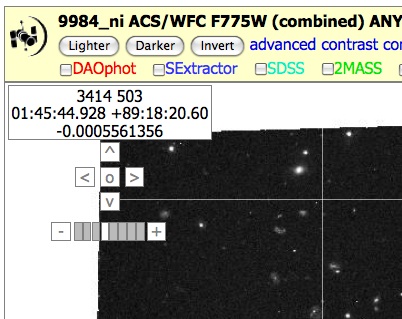 You may sometimes notice that a grid of lines appears in the interactive
display. An example is shown to the right. This is actually the result of a
browser bug generated when you use the browser's 'Zoom page' control to
make the images and text on the page appear larger or smaller. It occurs
in Firefox, Safari, and Google Chrome (at least). The problem is that the browser
is changing the displayed size for the HLA image tiles (which are 256x256
pixels), but it is not careful about exactly how the images line up,
so it generates the gaps between tiles.
You may sometimes notice that a grid of lines appears in the interactive
display. An example is shown to the right. This is actually the result of a
browser bug generated when you use the browser's 'Zoom page' control to
make the images and text on the page appear larger or smaller. It occurs
in Firefox, Safari, and Google Chrome (at least). The problem is that the browser
is changing the displayed size for the HLA image tiles (which are 256x256
pixels), but it is not careful about exactly how the images line up,
so it generates the gaps between tiles.
There are two workarounds for the problem, both requiring action by the user. First, typing resetting the zoom using the View->Zoom->Reset (Firefox) or View->Actual Size (Safari/Chrome) command returns the browser to its default zoom level. That gets rid of the lines. You can also use the keyboard shortcut for this command (Cmd-0 on a Mac).
The second workaround is to enable the "Zoom Text Only" option in the browser. That option is available for both Safari (View->Zoom Text Only) and Firefox (View->Zoom->Zoom Text Only). It does not appear to be available in Chrome. Selecting it checks that option. Then zooming using Cmd-plus only changes the text size but leaves the image tiles the same size.
What are the spectroscopic high-level science products? How can I view and interact with them?
As of DR7, the HLA includes spectral high-level science products, and makes it possible to search, preview, view, interact with, and download such data. The only data currently available are from StarCAT (PI Thomas Ayres), and represent STIS Echelle spectra that have been processed and combined using a uniform set of procedures. StarCAT data are also available through the standard HLSP interface in MAST.
StarCAT combined spectra fall into four broad categories: Stage Zero, Stage One, Stage Two, and Stage Three. Stage Zero (29 Datasets) data consist of individual exposures, usually intended to be combined with other exposures. Stage One data (148 Datasets) combine one or more exposures taken at the same instrument setting within the same visit. Stage Two data (69 Datasets) combine exposures of a single object taken in different visits and not necessarily identical, settings. Stage Three data (341 Datasets) combine all exposures for the object, spliced together into a single spectrum with potentially variable resolution and coverage (depending on the input spectra). If the source displays variability, there can be multiple Stage Three spectra, characterized by the time period of the observations; for example, the observations for HD 208816 include 21 separate epochs. Only the highest Stage data for a given target are included in the HLA interface; for example, if any Stage Three products are available, they will all be viewable in the HLA interface, but no Stage Zero through Stage Two products will be. Similarly, if Stage Two products exist (but no Stage Three), they will all be viewable through the HLA, but Stage Zero and Stage One products will not. The full set of StarCAT products are available via the MAST High-Level Science Products interface and at the StarCAT home page.
The spectral high-level science products can be found via the Advanced Search tab by selecting the appropriate Instrument (STIS) and Data Product (Contributed HLSP (Level 5). As of DR7 release, there are 586 such products.
To the extent possible, spectral data are treated in a way that parallels image data, with the changes made necessary by the different nature of the data. Previews, found through the Images tab, consist of quick-look, small (256x256 or 512x512 pixel) plots of the full spectrum, scaled in a way that should facilitate at-a-glance assessment of whether the spectrum might be of interest for a specific science project, although their small size limits their usefulness in the details. In the previews, the green line shows the measured flux, and the light brown line the estimated noise (2 sigma); the flux is only shown where it exceeds the noise.
In the Inventory view, clicking on the FITS link will place the data in the Cart for retrieval, just as for image products. However, the "Display" link loads the data in a dedicated Spectral Plotting Tool, which replaces the Interactive Display tool used for images. The Spectral Plotting Tool allows full-resolution view of the spectra, with arbitrary (user-defined) scaling and the possibility of crude measurements of line strengths and wavelengths. This Plotting Tool replaces an earlier, less powerful version. However, the number of wavelength points in some of the spectra can cause a lengthy (~ 30 s, depending on the computer) load time. Once loaded, manipulating the spectrum should work smoothly on most systems.
There are some peculiarities to note about StarCAT products in the HLA. First, Dataset names are quite long, and encode several pieces of information about the data and their processing. A typical Dataset name will start with 'hlsp_starcat_hst_stis', followed by fields indicating the target name, the wavelength range, the time range when exposures were taken (in Modified Julian Date format), and the aperture used, followed by the processing stage (zeroth-stage, etc) and version (all v1 in the current set), and finally the suffix "spc" indicating a spectral product. Each field is delimited by underscores; ranges are dash-separated. For more information about these fields, please refer to the StarCAT home page. Second, StarCAT uses internally a catalog name which may not be the same as the target name used in the original observations. These are often aliases for the same object. StarCAT names appear in the Dataset name and in the VisitNum column under the Inventory view, as well as under the Preview panels in the Images view. The original Target names appear in the Previews themselves.
What are mosaics? How do they differ from Level 2 combined images?
HLA mosaics, also referred to as Level 3 data, are images that combine data from multiple HST visits to cover a contiguous area of the sky. Level 2 combined images are restricted to data taken within a single HST visit, which means that the data can only cover a limited region of space (HST cannot change pointing by more than 2 arcmin within a single visit) and are obtained in consecutive HST orbits. In principle, mosaics can cover a very large area of the sky, such as the areas observed as part of the GEMS and COSMOS programs (0.25 and 2 square degrees, respectively). As mosaics can encompass data taken at different roll angles, with different guide stars, and at different times, alignment and handling of time-dependent effects (sensitivity, geometric distortion, CTE losses) pose greater challenges than for Level 2 combined images.
A small number of prototype mosaics were released as part of DR3 in May 2009. The HLA DR10 release includes a much larger number of ACS and WFC3 mosaics that were generated using a new image processing pipeline. The HLA currently offers mosaics for 1348 different pointings, including 4306 separate single-filter images. For ACS/WFC there are 2562 single-filter images for 1077 pointings, while for WFC3 there are 1744 images for 610 pointings. When a pointing includes both ACS and WFC3 data, the filters for all detectors have matched pixel grids. The images were aligned using the Hubble Source Catalog version 2. If more than one filter is available for a given pointing, a color image (Level 4) has also been released.
In order to find all available mosaics, you can do an all-sky search for ACS plus WFC3 Level 3 data; this search will return the color images as well. (See also the answer to FAQ 3). Here is a direct link to perform that search.
Mosaic generation is still an experimental procedure; although care has been exercised in quality control, please be alert to the possibility of remaining issues, and let us know of any problem by sending email to archive@stsci.edu or using the archive help desk.
What criteria are used to define mosaics? What is the naming convention?
Unlike visits, which are defined by the HST scheduling process and do not change, the definition of mosaics can change as more data are obtained in the same region of the sky. The definition of mosaics is based on "pointings", or groupings of image data that mutually overlap to cover a connected area of the sky.
The DR10 mosaics are defined using groups of sources in version 2 of the Hubble Source Catalog (HSCv2). Those groups consist of images that are reliably astrometrically cross-matched with images from overlapping visits. The overlaps can be quite small while still having a reliable cross-match, so some of these image groups look rather odd. Note that while WFPC2 images were not processed to generate mosaics, the WFPC2 source catalogs were included in HSCv2. That leads to some fields with "islands" of apparently disconnected images. The connection in that case is the unseen WFPC2 data that fills the gaps.
Mosaics are identified by a single number, which is the group number from the HSC database. Mosaics have names that resemble the other HLA product names: hst_mos_group_instrument_detector_filter, where group is the group number..
What steps are taken to produce the mosaics? What files are available?
In the current definition, mosaic processing requires four steps.
First, the images are aligned across visits by applying the astrometric corrections from HSC version 2 to the WCS coordinates for the contributing exposures. This step is required because images can only be successfully combined if they are registered to a relative accuracy of a fraction of a pixel (the goal is 0.1 pixels). The HSC relative astrometry has been found to be well within the required accuracy to produce high-quality mosaics.
Second, the data for each visit are combined with the standard DrizzlePac processing (the same used for Level 2 combined data) in order to identify cosmic rays and other blemishes. The pixels in each exposure that are flagged will not be used in further combinations.
Third, the sky brightness in different observations is matched by comparing the pixels in the regions where images overlap. This eliminates problems that come from changes in the sky background between visits, which can generate artifacts at the edges of exposures.
Finally, the images for each filter are projected onto the final pixel grid using DrizzlePac, with additional cosmic ray removal carried out across all exposures from overlapping visits. Weight images are also produced for each filter.
One tweak to this process occurs when exposures with a wide range of exposure times are being combined. That can trigger problems in the drizzle cosmic ray rejection which degrades the images. To avoid those problems, the exposures are grouped into "short" and "long" exposure groups that are processed separately. Then there are two mosaic images produced for that filter, one with "_long" and one with "_short" appended to the name. For most purposes the long exposure image is preferred since it is deeper. But the short exposure (which is on the same pixel grid) is useful when the properties of bright, saturated stars are needed.
Further refinements will be necessary in the future in order to process mosaics that do not fit the current restrictions. For example, data covering a long time span may need to be more thoroughly scrutinized for time-dependent and moving sources.
For each mosaic, the Multi-extension FITS (MEF) file has similar extensions to those used in the standard level 2 HLA combined images: science pixel data in extension 1, weight in extension 2, context image in extension 3, and a table of header information from all the contributing exposures in extension 4. There is no exposure time extension in the current version of the mosaics (that will probably change in the future).
The "More..." button exposes a list of all the exposures used in producing the mosaic for that filter. The button "Show all NN associated files", exposed in the "More..." view, gives access to other ancillary files produced during processing. These include the combined files for each filter and visit, as well as scaled JPEG files used for previews.
What is the astrometric and photometric accuracy that can be expected for mosaics?
An analysis of mosaic accuracy, by comparison with the individual input exposures, independent processing of the same data, and other data for the same area of the sky, indicates that both the astrometric and photometric accuracy are very good. The absolute astrometry is limited by the accuracy of the Hubble Source Catalog version 2, which depends mainly on 2MASS and is good to about 0.1 arcsec depending on the sky location. The relative astrometric accuracy within the mosaic is much better, with an rms of 5 milliarcseconds or less across the image. It is possible that there are residual scale errors in the astrometric calibration of the Hubble cameras, which would lead to systematic shifts across the field for large-area mosaics. Further analysis is needed to assess this possibility.
A full analysis of photometry using the mosaics has not been completed yet, but spot tests indicate the point-spread functions in the combined images are good, which should lead to good photometric properties. The photometry does not show any unexpected issues compared with photometry on single visit images. In the future we plan to make catalogs from these mosaics. The likely approach will be to use the mosaic for source detection and then to do forced photometry on images from different visits. For the faintest sources, photometry will be done directly on the mosaics. An analysis of these approaches will reveal the ultimate limitations of doing photometry directly on the drizzled mosaic images.
What source lists are available? How were they constructed?
Source lists constructed using DAOPHOT and SExtractor are currently available for nearly all of the HLA Level 2 images for ACS, WFPC2, and WFC3. These source lists were constructed in similar ways for ACS and WFC3 in DR10, but are slightly different in format, depth, and completeness for WFPC2 (most recently derived for DR4).
Source lists for Level 3 (mosaics) data, as well as for NICMOS and Level 5 (contributed) products, are under consideration for future releases.
The source lists can be overlaid on an image using the interactive display, and can be downloaded via the Inventory or Images view. It is possible to obtain detailed information on sources directly from the overlay view. Simply clicking on the overlay marker for a source brings up a box with basic information on that source, including ID, position, and photometry as available. This applies both to HLA-produced source lists and to sources from external catalogs (GSC2, SDSS, 2MASS, FIRST, GALEX) that are overlaid on the HST image in the Interactive Display. If the overlay markers overlap, information from all applicable sources is included.
The source lists are ultimately vetted to ensure a modest level of quality and utility. Lists that contain an excess of spurious sources, e.g., for reasons described in the WFC3 Source List Anomaly Examples page, are rejected and not included in DR8. See further details on the vetting process below.
Please note that while the HLA images and source lists will be useful for science, by necessity these products are developed for general usage rather than being "tuned" for a specific scientific goal. Hence, in many cases, going back to the original STScI calibration pipeline data and processing on a chip-by-chip basis can achieve the optimal science. A more detailed description of the photometric accuracy is available in the Whitmore et al. (2016) paper on the Hubble Source Catalog. Note that the DR10 release has made many improvements to source lists, so that the photometry is expected to be significantly better than previous versions.
Why do some sources appear to be blank for some filters?
The source lists are made from a "white light" image, also called the "Detection" or "Total" image (i.e., the combination of all the different wavelength filters available within a given visit). For this reason, the overlaid objects may appear not to correspond with a source in some cases (e.g., a very red source may not be visible in a blue image). Looking at the detection image will generally result in a better correspondence between the source list and the objects in an image for this reason.
A related point is that these "white light" images may include more filters than are displayed in the color images in either the Inventory or Images view. In such a case, there may still be a slight difference when overlaying the source list on the color preview and on the detection image. An example is the 47 Tuc ACS visit 10048_a2, which has a color preview constructed from three colors (F814W, F555W, and F435W) but has a "white light" image that is actually constructed with all seven filters that are available.
Why are there both DAOPHOT and SExtractor source lists?
Two types of source lists are available via the HLA: DAOPHOT, which is optimized for point-like objects, and SExtractor, which is preferable for extended objects. The choice of which catalog to use depends on your science. Generally the photometry and morphology information from Source Extractor is much more useful for galaxies, while the DAOPhot photometry is more accurate for point sources.
How do I download the single-filter source lists?
Note that there are single-filter source lists for each visit. These source lists use the master list of positions determined from the "white light" detection image. These source lists are available from the Image view below each image with the appropriate filter, and in the Inventory view under the column headings DAOCat and SEXCat.
How do I download source lists using a script?
If you want to download a large number of source lists, it may be less tedious and time-consuming to use a script (e.g., in Python) to retrieve the lists rather than going through the HLA cart via the links in the Inventory or Image view. All HLA catalogs are directly accessible via standard HTTP requests. Here's a sample URL to retrieve a single HLA catalog:
All the parameters are case-insensitive. The CATALOG parameter can be either DAO or SEX for DAOphot or SExtractor catalogs. The FORMAT parameter has a number of possible values, including text (simple ascii format with columns aligned), votable, and csv (comma-separated values). The IMAGE parameter specifies the source image for the catalog. If the dataset name for a single-filter image is specified, the source list includes magnitudes, sizes, etc., derived from that filter. If a detection image is specified (e.g., hst_8992_52_acs_wfc_total), a multi-wavelength catalog is returned with separate columns for the magnitudes in each filter.
Scripts to retrieve catalogs can be written in any language that supports retrieval of data from URLs (e.g., shell scripts using wget, Perl, Python, etc.) Here is a simple example in Python:
				import urllib
				url = "https://hla.stsci.edu/HLA/Catalogs/HLAcat.aspx?CATALOG=DAO&FORMAT=text&IMAGE=hst_8992_52_acs_wfc_f606w"
				data = urllib.urlopen(url).read()
				print data
A more complete Python script providing a few additional options is also available.
To determine which images have catalogs, use the HLA Simple Image Access server (https://hla.stsci.edu/cgi-bin/hlaSIAP.cgi) to do searches. It is a standard registered VO service that returns a VOTable. You can do all-sky searches for one instrument at a time (e.g., to get all the ACS, WFC3 or WFPC2 observations) by specifying the inst parameter. For example, the query to return all WFC3 observations is
https://hla.stsci.edu/cgi-bin/hlaSIAP.cgi?inst=wfc3&pos=0,0&size=180
Use the VO standard request for search metadata (https://hla.stsci.edu/cgi-bin/hlaSIAP.cgi?format=metadata) to get information on all the search parameters.
The DAOCat and SEXCat columns in the returned table show whether the image has catalogs or not. If the column has the value "Loaded" then the corresponding catalog can be downloaded using the HLACat url given above.
What are the differences between releases of the source lists, and between lists for different instruments? What are common artifacts to watch out for?
ACS
The history of source list releases differs for each detector. For ACS, preliminary source lists were released as part of the Early Data Release (July 2007, designated
Version Beta 3, or VB3), and of Data Release 1 (February 2008, designated Version 1.0). Source lists were then created for
release as part of Data Release 2 (September 2008, designated Version 2.0). The Version 2.0 source lists were then
superseded by those source lists created for Data Release 3 (May 2009, designated Version 3.0). Modified source lists were
created for Data Release 4 (February 2010, designated Version 4.0), and new source lists were released in Data Releases 5 and
6 for ACS as new data became available. The source lists created for Data Release 9 (October 2015) used a newly
created processing pipeline. The source lists for DR9.1 (September 2016) are similar to those from DR9 and use the same
images as input, but the SExtractor lists use improved noise estimates for source detection and are significantly better in crowded fields.
In other regions the DR9 and DR9.1 ACS source lists are very similar, and the DAOphot lists are also similar.
The DR10 (January 2018) source lists are further improved due to image processing improvements (especially image alignment) and to
source list processing improvements (particularly for SourceExtractor near image edges).
The DR10 source lists supersede all previously created ACS source lists.
The DR10 version of the source lists included many modifications originally designed for the DR8 processing of WFC3. The computation of the total light image has been modified slightly to account for the fact that the background of ACS (and WFC3) images has not been suppressed. This also necessitated changes in the source-finding parameters used for both Source Extractor and DAOPhot. The parameters are consistently included in the catalog headers that can be retrieved in the usual way.
In order to achieve better consistency in the performance of Source Extractor's source-finding algorithm, we found that it is preferable to use a different spatial filter (the search convolution kernel) for sparse and crowded images. We used a Gaussian kernel for sparse images, and a Ricker (or "mexican hat") kernel for crowded images; sparse images are defined as those with fewer than 800 sources found by DAOPhot, and crowded as those with more. (The DAOPhot algorithm performance is less sensitive to crowding than Source Extractor's.) The detection threshold was modified accordingly. The spatial filter and threshold used are listed in the catalog header.
The change in search parameters results in a more consistent depth of image searching, and in fainter sources being identified for both Source Extractor and DAOPhot lists. For very crowded images, this results in lists containing several tens of thousands of sources. In such cases, the source overlay process via the Interactive Display (see FAQ Source Q1) can take several seconds, and occasionally trigger a "busy script" warning from the browser. In our tests, allowing the script to continue is usually successful. Zooming in and brightening the image by several steps may be necessary to visually confirm the validity of the sources of interest.
ACS DAOPHOT source lists use custom algorithms for the flagging of spurious artifacts around bright stars, along the edges of the images, along bleed lines of saturated stars, and in the gaps of images. We have implemented a set of instrument specific flags (described below) to filter these artifacts in the source lists. The filtering method continues to be refined, and as such there is a possibility that not all artifacts have been identified in all image products. This is especially the case in data with bright sources, numerous point sources, or of low signal-to-noise.
WFPC2
WFPC2 source lists were released for the first time as part of DR3, and were designated
Version 3.0. These lists were initially considered preliminary, as the algorithms developed
to remove spurious sources for ACS have only limited validity for WFPC2. As such,
the detection threshold was initially set high for WFPC2, especially for the SExtractor source lists, in order
to limit the number of false detections.
As the detection and filtering procedures have been refined, a substantial
increase in the number of sources reliably detected in
WFPC2
images has resulted for DR4. In addition, Source Extractor lists released
since DR4 also include
the list of parameters used to generate the catalog.
Pre-DR4 WFPC2 source lists are obsolete and should no longer be used.
Unlike ACS, WFPC2 source lists explicitly include a correction for CTE based on the 2008 formulae from Dolphin. As a consequence, the source lists differ slightly in format from the ACS lists because they include additional columns with the information used for the CTE correction. Columns in common between ACS and WFPC2 lists have the same meaning, except that for WFPC2 the apertures used are 0.1 and 0.3 arcseconds in radius, vs 0.05 and 0.15 arcseconds for ACS.
WFC3
WFC3 source lists are nearly identical to ACS lists. They have exactly the same column format, and the columns have the same
meaning, with the exception of the aperture radii used for WFC3/IR. The two apertures for WFC3/IR source lists have
radius 0.15" and 0.45" respectively, instead of the radius of 0.05" and 0.15" used for ACS/WFC and WFC3/UVIS.
However, there are some differences in the generation of the source lists of which users should be aware.
As for ACS, the DR10 version of the source lists (January 2018) have some significant improvements. They supersede previous versions of the lists.
A result of our new processing parameters is a deeper source search, which also results in more marginal or dubious sources found at the faint end. Based on user comments, we believe that this trade-off is generally preferred. However, in some cases the new source-finding parameters result in an excessive number of spurious faint sources; to the extent that we have been able to identify such cases, we have excluded them from the current release.
The flagging in WFC3 source lists is similar to that used in the ACS source lists, and is greatly improved the quality and was implemented for DR7.2. Spurious sources occur under several conditions: near very bright stars, whose PSF has several secondary peaks that DAOPhot (and less frequently Source Extractor) misinterprets as separate sources; along diffraction spikes, which similarly can cause local fluctuations to appear as separate sources; in regions of lower exposure, which have increased noise and possibly greater incidence of unrejected image artifacts such as cosmic rays; and along the edges of the valid image, as a result of how Source Extractor handles variable background. We have implemented a set of instrument specific flags (described below) to filter these artifacts in the source lists. The filtering method continues to be refined, and as such there is a possibility that not all artifacts have been identified in all image products. This is especially the case in data with bright sources, numerous point sources, low signal-to-noise, and WFC3/IR visits that include narrow-band or medium-band exposures.
The WFC3 Source List Anomaly Examples page illustrates some of the known problems with WFC3 source lists. In some cases, we judge the problems severe enough that the corresponding lists have not been released; more frequently, the lists remain usable with caution, and have been released. We indicate the steps that will be taken to rectify known problems to the extent possible.
Why do you call them source lists rather than catalogs?
In most cases, an optimal catalog must be "tuned" or "optimized" for a specific scientific goal (e.g., point-sources, extended sources, faintest possible objects, crowded field, high backgrounds, etc.)
Our pipeline processing must be fully automated to handle tens of thousands of datasets. Hence we are not able to construct catalogs that are optimized for all conceivable science goals. Instead, our approach is to provide a basic, general-purpose, first-look set of source lists. In many cases researchers will need to construct their own catalogs in order to optimize the science for their own specific goals.
This philosophy impacts our approach to making the source lists; for example, our adoption of the use of a "white light" detection image rather than making separate source lists for each filter. Because of this approach, the completeness for a given color is poorly defined. This is another reason for calling them source lists rather than catalogs.
Finally, all the HLA source lists have been constructed from individual images. No attempt has been made to merge lists from overlapping regions of the sky into true object catalogs. Consequently the catalog database may contain many different observations of the same object, with independently computed astrometry, photometry, morphology, etc.
The Hubble Source Catalog (HSC) project starts from the HLA source lists and merges them into a true catalog including corrections to the astrometry between visits and matches between multiple observations of the same object. To date these improvements have not been propagated back into the HLA images and catalogs, but with the next HLA DR10.2 release we plan to incorporate some of the HSC information into the HLA. The HSC is indeed a product worthy of being deemed a "catalog" rather than a collection of source lists.
How accurate and reliable are the source lists?
Some of the design goals are:
Spot checks (PPT) show that we are well within our design goals for the ACS source lists. The Whitmore et al. (2016) paper on the Hubble Source Catalog provides much more information on the accuracy of the photometry and astrometry.
What are the basic parameters used to construct the source lists?
Both DAOPHOT and SExtractor source lists are made with circular aperture photometry at radii of 1 and 3 pixels. The background is defined as the median in an annulus from 5 to 10 pixels. In most cases, the detection threshold is set to 3 times the background noise, although it is adjusted in some regions in accordance with the source flagging (see below).
Two versions of each type of source list have been produced, the first being a full detection list with these basic parameters, and the second (suffixed with "_trm.cat") filtered to exclude sources with flag values (described below) greater than 5, indicating source problems other than saturation. You can download the full catalog using the "More..." feature when using the image mode in the web interface. See the "More..." FAQ for details.
What is the key for the flag values in the Source Lists?
ACS
Here are definitions for the ACS flags used in each detection (also listed in the header of each source
list). These eight-base flags values can be combined by addition, e.g., a value of 20 indicates both conditions 4 and 16.
A flag value of 0 implies that none of the additional conditions is present.
The flags are determined for ACS images in the following way:
WFC3
Here are definitions for the WFC3 flags used in each detection (also listed in the header of each source list). As with
ACS, these flags can be combined by addition.
WFPC2
Here are the definitions for the WFPC2 flags used for each detection (also listed in the header of each
source list). As with ACS, these flags can be combined by addition.
Many of these flags are determined in methods similar to what is used for ACS and WFC3.
Note that the "trimmed" source lists (i.e., sources with flag values of 5 or less) are provided for download from the image mode. You can download the full catalog using the "More..." feature when using the image mode in the web interface. See the "More..." FAQ for details.
Where do I find the Check Segmentation, Background, and Aperture images created when running SExtractor that coincide with specific SExtractor source lists?
It is important to realize that the "apertures" used by SExtractor are not the circles shown by the overlay in the Interactive Display, but are ellipses of different sizes, shapes, and orientations. The “check aperture images" created by SExtractor show the actual apertures used.
One can access these SExtractor auxiliary check fits files from the "Images" view in the HLA web interface. By clicking on the "More..." link (located in the lower right corner of each image box). Upon clicking on the “More…” link, a separate web page will be opened. In the new web page you will find, and can click on the "Show all associated files" link, which will lead you to a link for the "se_check_files.tar.gz" file. Clicking on this link will add the file to your cart. It is then necessary to go back to the original web page, click on the "Cart" tab near the top of the page, and click on the "Retrieve HLA Data" button to begin the download process. Once the file has been downloaded, you will need to unzip and untar the file per the methods designated for your specific operating system. The aperture image can be identified based on the word “aperture” in its name. The other fits files in the folder are intermediate products created by SExtractor (e.g., the background image subtracted from the original image before determining the apertures to use, etc.).
What do I need to know about photometric zeropoints for images and source lists?
ACS
1. ACS images are in ELECTRONS/SECOND. Zero-points have been published in Sirianni et al. 2005, PASP, 117, 1049, Table 10; updated values are included in the ACS Instrument Handbook and can be found at https://www.stsci.edu/hst/acs/analysis/zeropoints. Zero-points can also be computed from the values of PHOTFLAM and PHOTPLAM in the header of the image file using the equation:
ABMAG_ZPT = -2.5 Log (PHOTFLAM) - 5 Log10(PHOTPLAM) - 2.408
Note that the HLA source lists are in units of ABMAG.
2. If performing aperture photometry, the relevant aperture correction is applied. Published ACS zero points are for an infinite aperture; details of the aperture correction depend on filter and photometry procedure. See the Sirianni et al paper for more details.
3. Convert to the desired magnitude system. ACS zero-points are provided in three systems: ABMAG, STMAG, and VEGAMAG, see the ACS Data Handbook for more details on the systems. Note that the conversion between these systems depends on the filter and, to a lesser extent, on the system throughput curve. However, the conversion DOES NOT depend on the source spectrum. The difference between magnitudes in the three systems is small around 550nm (0.05 magnitude or less for F555W) but it can be quite large (over 1 magnitude) in the UV and near IR.
4. Other adjustments may be necessary, e.g., for CTE losses. These are to date much smaller than for WFPC2, but they may need to be taken into account for high precision photometry. Consult the ACS Instrument and Data Handbooks and the Instrument Science Reports (all found at https://www.stsci.edu/hst/acs/documents) for the most up to date information on the calibration of the camera.
WFC3
WFC3 images are in ELECTRONS/SECOND. Zero-points are currently available at https://www.stsci.edu/hst/wfc3/phot_zp_lbn, where information is provided to derive aperture corrections for both UVIS and IR data. Consult the WFC3 Instrument Handbook for additional details.
In most respects, WFC3 images follow the same conventions as ASC images and the same procedures can be applied.
WPFC2
WFPC2 Level 1 (drizzled) and Level 2 (Combined) images produced by the HLA pipeline are also in units of ELECTRONS/SECOND, like ACS images. Note that this convention is different from that adopted by the Archive pipeline, which produces calibrated images (the *c0m.fits files) in total Data Number (DN). One DN is approximately 7 or 14 electrons, depending on the gain level chosen by the original observer. There are thus two differences in the images: HLA images express counts in electrons rather than DN, and they are divided by the exposure time to obtain a count rate rather than total counts.
The calibration information found in the WFPC2 documentation all refers to DN rather than electrons; therefore all zero-points must be adjusted to account for the gain. (Published zero points do assume that instrumental magnitudes are already corrected for the exposure time.) The following adjustments are therefore necessary for HLA WFPC2 images:
1. Convert published zero-points from DN to ELECTRONS using Table 5.1 of the WFPC2 Data Handbook. This is just the Gain, which is listed in Table 4.4 of the Instrument Handbook. This varies by about a percent for the different chip, but an average value of GAIN = 7.04 for the three WF chips should suffice for most purposes. Hence, this correction is 2.5 log10(7.04) = 2.119. So for example, rather than using a zero-point of 22.557 (an average for the three WF chips from Table 5.1), you should use 22.557 + 2.119 = 24.676 magnitudes.
NOTE: Before DR4, the value of PHOTFLAM in the header of WFPC2 HLA images was not directly applicable to the counts in those images, since it was not adjusted for the conversion from DN to electrons. HLA images produced in DR4 and later (with file creation date after October 2009) have the appropriate values of PHOTFLAM in the header. Essentially all WFPC2 images were reprocessed for DR4, thus any image retrieved since March 2010 should have the correct PHOTFLAM.
2. Ensure that the instrumental magnitude (-2.5 log10(total pixel value) determined by your photometric package uses an exposure time of 1 second. Some packages may read the value of EXPTIME from the image header and apply a correction of (-2.5 log10(exposure time)) to the total pixel counts from the image; THIS WILL LEAD TO INCORRECT PHOTOMETRY. The value of EXPTIME in the image header is indicative of the total exposure contributing to the image, but it MUST NOT be used in computing the instrumental magnitude as the image units are already expressed in counts per second.
3. If performing aperture photometry, apply the appropriate aperture correction. WFPC2 zero-points are given by adding 0.1 magnitudes to the counts within a 0.5 arcsecond radius; thus if the photometry uses a radius of 0.5 arcseconds, the aperture correction is 0.1 magnitudes by definition. For other apertures, the correction can be determined directly from the data (e.g., by measuring an isolated bright star if available) or estimated using the encircled energy curves from Holtzman et al 1995,PASP 107, 156. If a very small aperture is used (less than 0.1 arcseconds radius), the variation of aperture correction with focus may be significant, and thus a direct measurement from the data is preferable. See the WFPC2 Data Handbook for more information.
4. Convert from VEGAMAG to ABMAG or STMAG if desired. The same considerations apply as for ACS; however, WFPC2 zero-points are only provided in VEGAMAG, not in STMAG or ABMAG. The WFPC2 Data Handbook provides detailed examples on the steps needed to carry out the transformation using SYNPHOT
5. Other adjustments may be necessary, CTE and contamination corrections being the most common. Please consult the WFPC2 documentation at https://www.stsci.edu/hst/wfpc2/documents for up to date information and for more details.
NICMOS
NICMOS Level 1 (drizzled) and Level 2 (Combined) images produced by the HLA pipeline are also in units of ELECTRONS/SECOND, like ACS images. Note that this convention is different from that adopted by the Archive pipeline, which produces calibrated images (the *cal.fits files) in DN/second. For most images, one DN corresponds to 5.4 electrons (Cameras 1 and 2) or 6.5 electrons (Camera 3); the value of the gain is given by the header keyword ADCGAIN.
The NICMOS photometric calibration is expressed by the header keywords PHOTFLAM and PHOTFNU; photometric zeropoints are obtained from these quantities as described in the NICMOS Data Handbook. The values of PHOTFLAM and PHOTFNU refer to DN/second; counts obtained from HLA-produced images must be divided by the gain in order to apply the zeropoints thus derived.
Please refer to the NICMOS photometry page for more details on various corrections and adjustments that may need to be applied to obtain the best photometry from NICMOS images.
Are there source lists that combine photometry from multiple filters?
Multi-wavelength source lists, combining photometry from multiple filters, are now available for ACS, WFPC2, and WFC3 data.
Whenever data in more than one filter are available for a given visit, sources are identified in the white light image, but the photometry is carried out separately in each filter, generating separate source lists for each filter. However, sources corresponding to the same area/location of the image are given the same ID number, thus users can in principle unambiguously cross-match sources across filters.
For convenience, starting with DR5 users can obtain directly a combined source list that provides matched photometry for each source across filters. These lists are associated with the Level 2 Total images and with the Level 4 (color) images in the same way as the regular source lists are associated with Level 2 data products for each filter, and are accessible from the DAOCat and SEXCat columns in the Inventory view, as well as from the "More associated files" button in the Images view. For consistency, summary source lists exist also for visits with only one filter, and are associated with the total image.
The combined source lists, labeled "multiwave", include an entry for each source that appears in at least one of the single filter lists. For ease of use, only a fraction of the information in the original lists is reported: this includes the ID number, pixel and sky position, and magnitudes, concentration indices, and flags for each filter. Only one aperture magnitude and one total magnitude are reported. The aperture magnitude corresponds to a radius of 0.15 arcsec for ACS and WFC3/UVIS, and 0.30 arcsec for WFPC2, and 0.45" for WFC3/IR. For Source Extractor lists, the total magnitude is taken from the MAG_AUTO entry in the single-filter list. For more information, such as errors, fluxes, sizes, other magnitudes, and other details, users will need to refer back to the more complete single-filter lists. Missing or invalid values appear as "-999.000" for ACS and WFPC2. In WFC3 (both channels) missing or invalid data appear as "-999.000" and as "99".
Note that source detection is carried out separately (with different criteria and algorithms) for the DAOPhot and SEXPhot lists; therefore ID numbers are not consistent between the two, even within the same visit, and separate multiwave lists are generated for DAOPhot and SEXPhot when both exist. Please note that, because of software limitations, multiwave lists may not be generated for visits with a large number of filters (around 20 or more).
The Hubble Source Catalog provides a much more complete integration of observations in different filters by matching observations of objects taken in different visits with different instruments. That comes with its own set of challenges, including the effects of time variability, the "detection variability" that comes from independently identifying objects in different visits, proper motions, etc. Despite these challenges, the HSC is a valuable resource for multi-wavelength photomtry.
Is there a source list for every image?
No. The source lists are ultimately vetted to ensure a modest level of quality and utility. "Trimmed" lists that contain an excess of spurious sources, e.g., for reasons described in the WFC3 Source List Anomaly Examples page, are rejected and not included in DR7.2.
For the DR10 ACS and WFC3 source lists, we required a high fraction of matching detections between DAOPHOT and SExtractor source lists. These match rates, when corrected for expectations of false matches, set a delimiter between an acceptable and an unacceptable number of spurious detections. This typically guards against excessively noisy data, where independent source detections would not necessarily agree. It does not, however, protect against image artifacts that persist beyond image processing, and are not caught by the source flagging. This unfortunately includes, to a large degree, any visit that includes narrow-band or medium-band exposures in the WFC3/IR detection image, in which the there are significant interference/fringing effects in the wings of PSF that are not captured by the swarm filtering.
For most WFPC2 source lists, this vetting was done through a through visual inspection of a large sample of image products.
How do I zoom into have a close up look at the footprints? Can I pan around the image?
Click on the background (DSS) image. This will activate the zooming capability. Zoom out by using the "-" key and zoom in by using the "+", "=" key(s). Once you have zoomed in, you can pan around the image by clicking and dragging the image to move around.
How do I tell which aperture in the footprint view corresponds to which observation in the table?
When you choose a footprint by clicking on the aperture, its corresponding data set is highlighted in the table below. The same is true if you choose a dataset from the table, the associated footprint will be highlighted in the graphical viewer. If you hover the mouse over a row in the table, the corresponding footprint is highlighted. Similarly, if you hover the mouse over a footprint, the row in the table is highlighted.
If you have a several pages of datasets, it may be difficult to find the selected, highlighted images. In that case try clicking theFirst button to move the selected images to the beginning of the table or the Only button to show only the selected images.
How do I choose footprints that have a small instrument aperture?
Small aperture instruments have footprints that are too small to be selected at the current default search radius of 0.20. You will need to zoom in (see footprint FAQ #1) to be able to see these footprints.
Are there footprints for COS observations and other observations without HLA data products?
Yes, COS footprints are shown when that instrument is included in the search. All entries in HLA search results (including proprietary data and other datasets that do not have HLA data products) have footprints.
Can I pick a variety of instrument footprints and see only what I've chosen?
Yes. Select the footprints you wish to view. Go down to the table selectors and select Only. This will display only the footprints and datasets selected. To return to the original search, click Reset selection.